

Signing Up
Landlords:
With an easy Sign Up process, you should be able to have your Bolar account up and running in no time. To sign up on the mobile app, tap “Sign Up” on the Bolar portal and you will be prompted to enter your name, email, and password. You will also need to scan your drivers license and enter your phone number for further verification and security. After you have submitted your information, wait for a verification link, which will be emailed to the email address which you provided.Property Managers:
For Property Managers, your sign up process is a bit different. You will be prompted to enter additional company information, such as the name of your company and your company email.
Home Screen
Once you have signed up, you can now log into your portal to add and manage properties, invite tenants, view tenants’ score reports and history, add tenants to your properties, and much more!
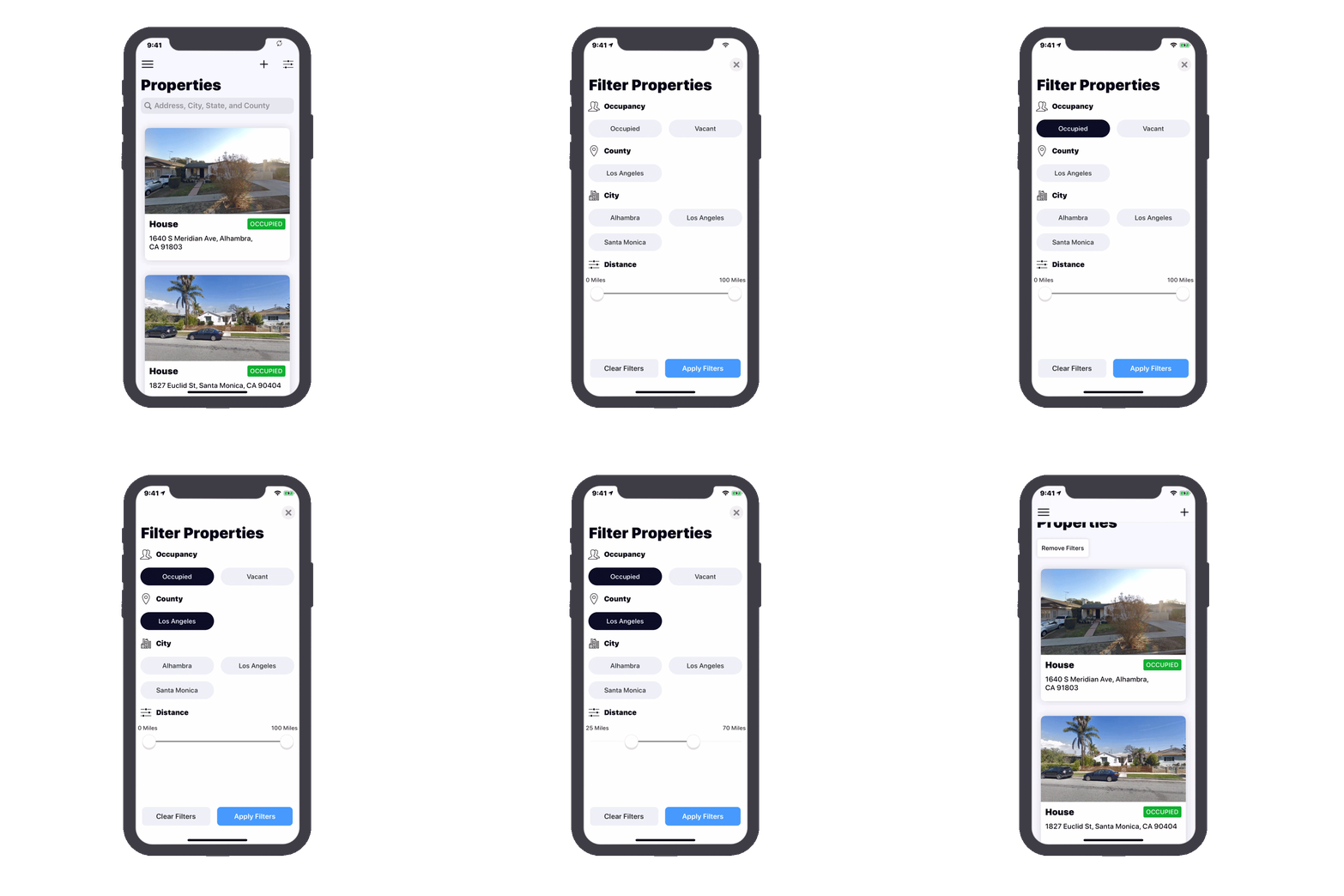
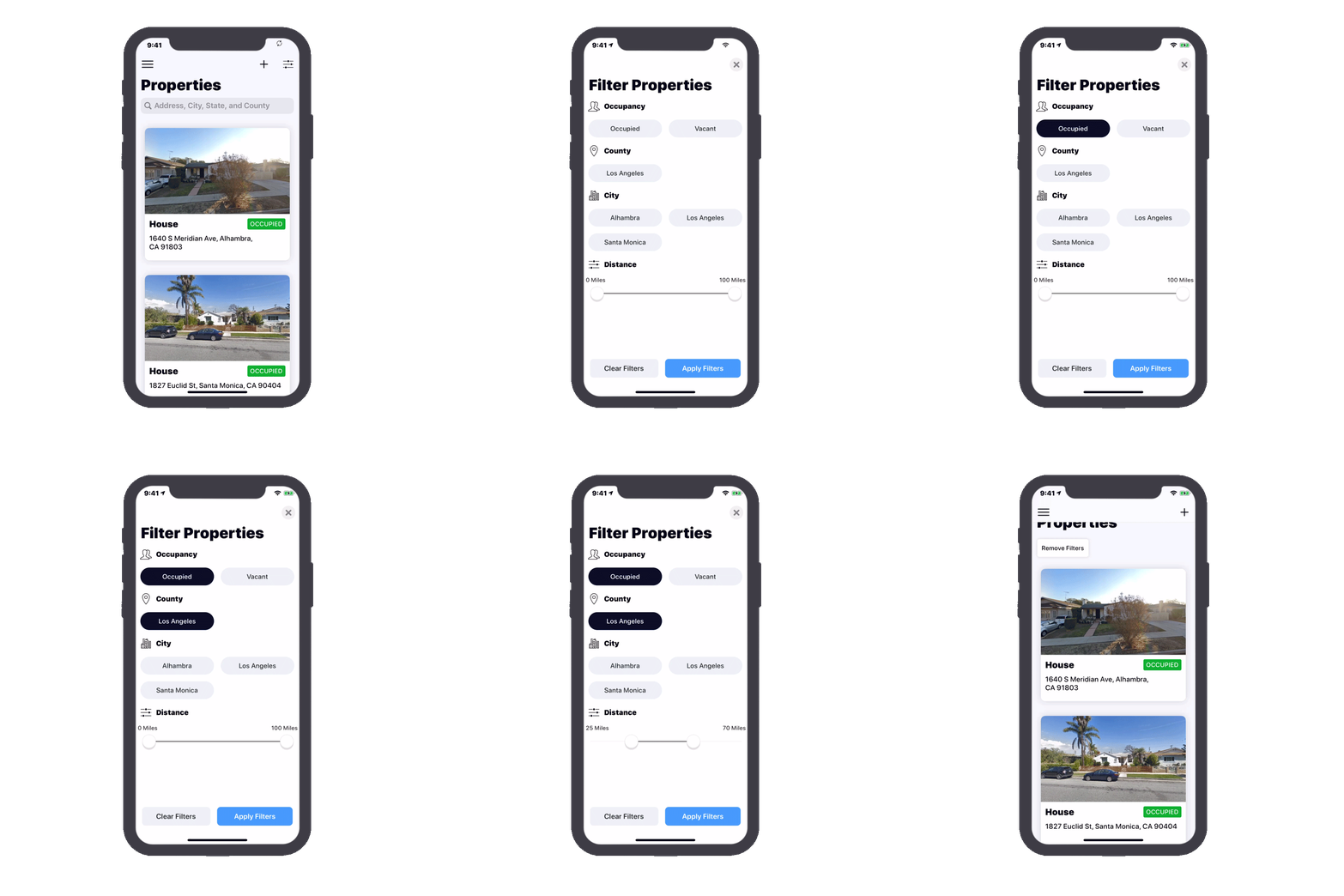
To view your properties, simply tap on "Properties" from the menu. You can manage your properties by tapping on the respective one.
Adding a property
Once you have signed into your portal, simply click “Add Property” and enter your property’s APN and California County Code when prompted.
After adding property, you can now manage it right from your portal! You’ll be able to invite tenants to specific properties using individualized referral codes, and then after viewing their score reports and history, decide whether or not you would like to add them to your properties.
Removing a property
Occasionally, you may want to remove a property from your portal, if you no longer own it and want to free up clutter from your account. Fortunately, you are able to do so. Simply click on the property you would like to remove from your portal, and click “Remove Property”.
Sending a referral code
As mentioned earlier, we do everything we can to make the housing application process easier for you and the tenants through individualized referral codes. After you have added a property, you can invite your prospective tenants through the portal by clicking on the property then “Add Tenant”, where you will be able to enter your tenants’ names and email addresses. After you have sent your tenants referral codes, they will be able to enter those codes in their applications.
Reviewing tenant applications
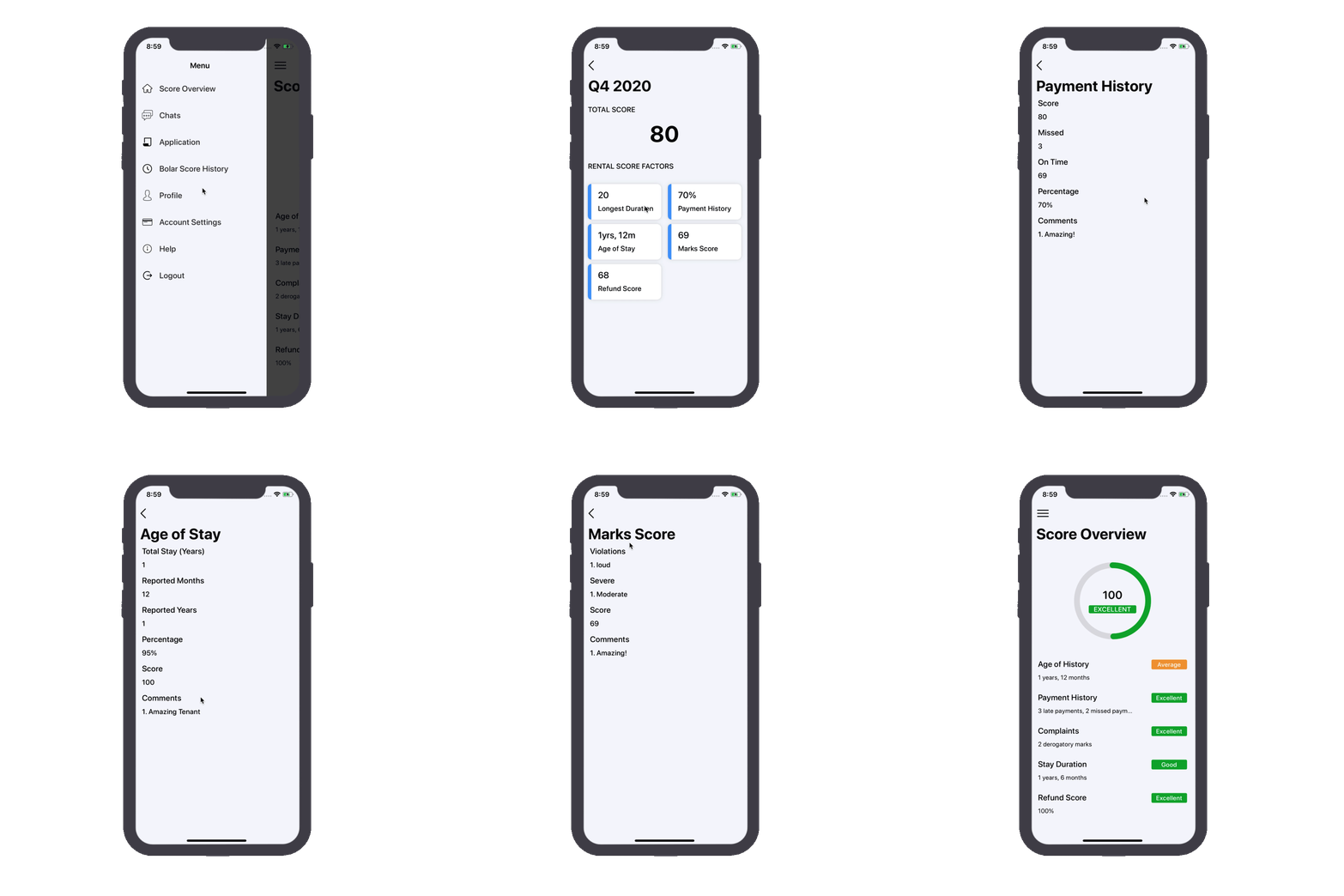
After your prospective tenants have filled out their applications for your properties, you will be emailed with a score report breakdown for each tenant, based off of intensive factors. To read more about these factors, click here!
Adding tenants to properties
After viewing your prospective tenants’ score reports and history, you will be able to decide whether or not you would like to add them to your property. If you would like to add them, simply tap on your property and then “Add Tenant” next to each respective applicant name. If not, you can remove the tenant from the property application.
Filing incident reports
Sometimes, problems might arise from tenants. However, Bolar offers a simple way to report such problems. Through your dashboard, you can easily file incident reports by clicking on the respective property and selecting: “Submit Incident”. During this process, you will be able to provide specific details on the incident which occurred, such as tenant(s) involved, severity of the incident, cost estimate of the incident, and more.
Managing Bank Settings
From your dashboard, you will be able to navigate to your bank settings, in which you will be able to make changes if necessary. To view your bank settings, click on your account logo in the upper right corner, select “Account Settings”, and then proceed to “Manage Bank Settings”. Your payment portal can be accessed through Stripe, our online payment platform. Stripe is a secured payment suite which encrypts all of your payment information in order to ensure security.
You can do the same on the mobile app by tapping on your menu and selecting "Manage Account".
Contacting Customer Support
For any additional questions or inquiries regarding your account, feel free to contact us! Click on your account logo in the upper right corner, select “Customer Support”, and simply enter your email where prompted, and explain your issue in the “Message” section. Don’t forget to hit “Send Message” when you’re done!
On the mobile app, you can do the same by tapping on your menu, selecting "FAQ & Help" and following the prompted instructions.
(New!) Chat with your tenants
Communication is key, but finding accurate tenant contact information is often a struggle. We've simplified it for you.
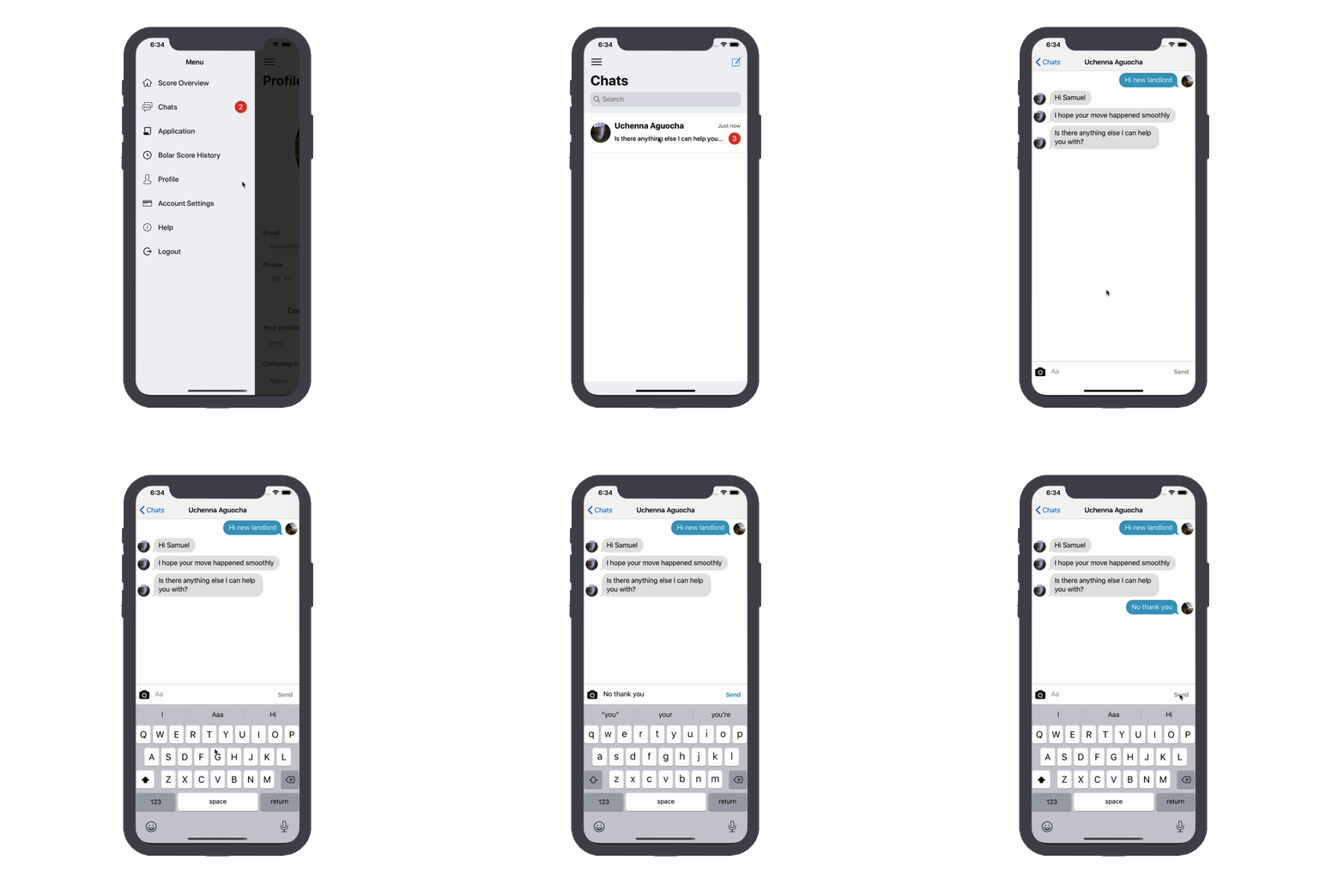
The new BOLAR update allows you to communicate with your tenants right from the app! Tenants are also able to message you using this feature, which allows for issues to be resolved, questions to be answered, and relationships to be built.
To conveniently chat with your tenants with ease, simply navigate from the menu to the "Chat" option, and follow the instructions from there!
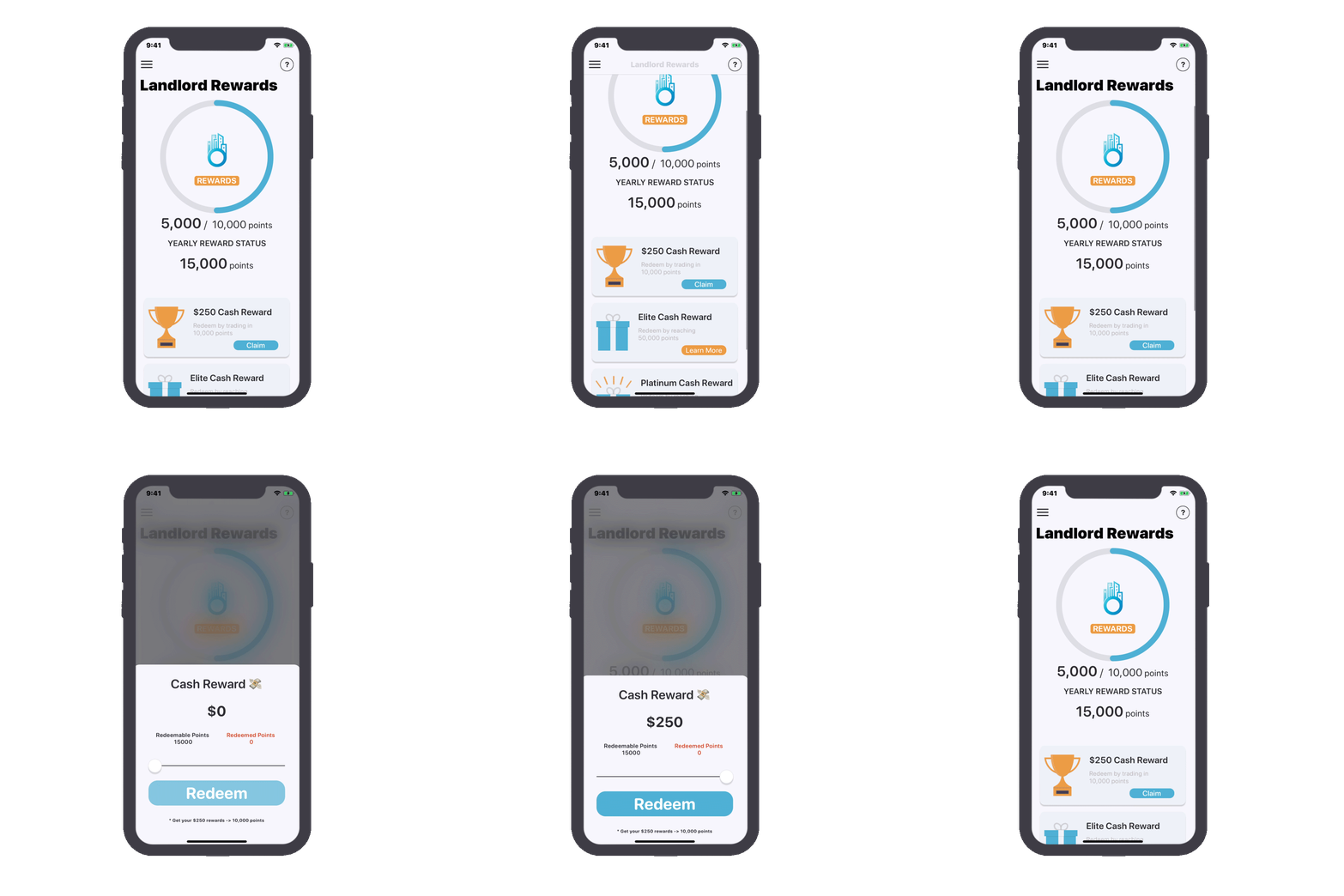
LANDLORD REWARD PROGRAM
Bolar Points are our way of rewarding landlords for bringing in tenants into the Bolar Community. Not only are you making the process easier for yourselves, but you’re also helping future landlords receive accurate metrics about the reliability of their prospective tenants, so we wanted to say thank you for using our service!
Landlords earn Bolar points every-time a tenant submits an application! For each tenant application, you receive 500 Bolar Points, which will be added to your Reward’s portal where you can trade points for cash.