
Tenant Sign-Up
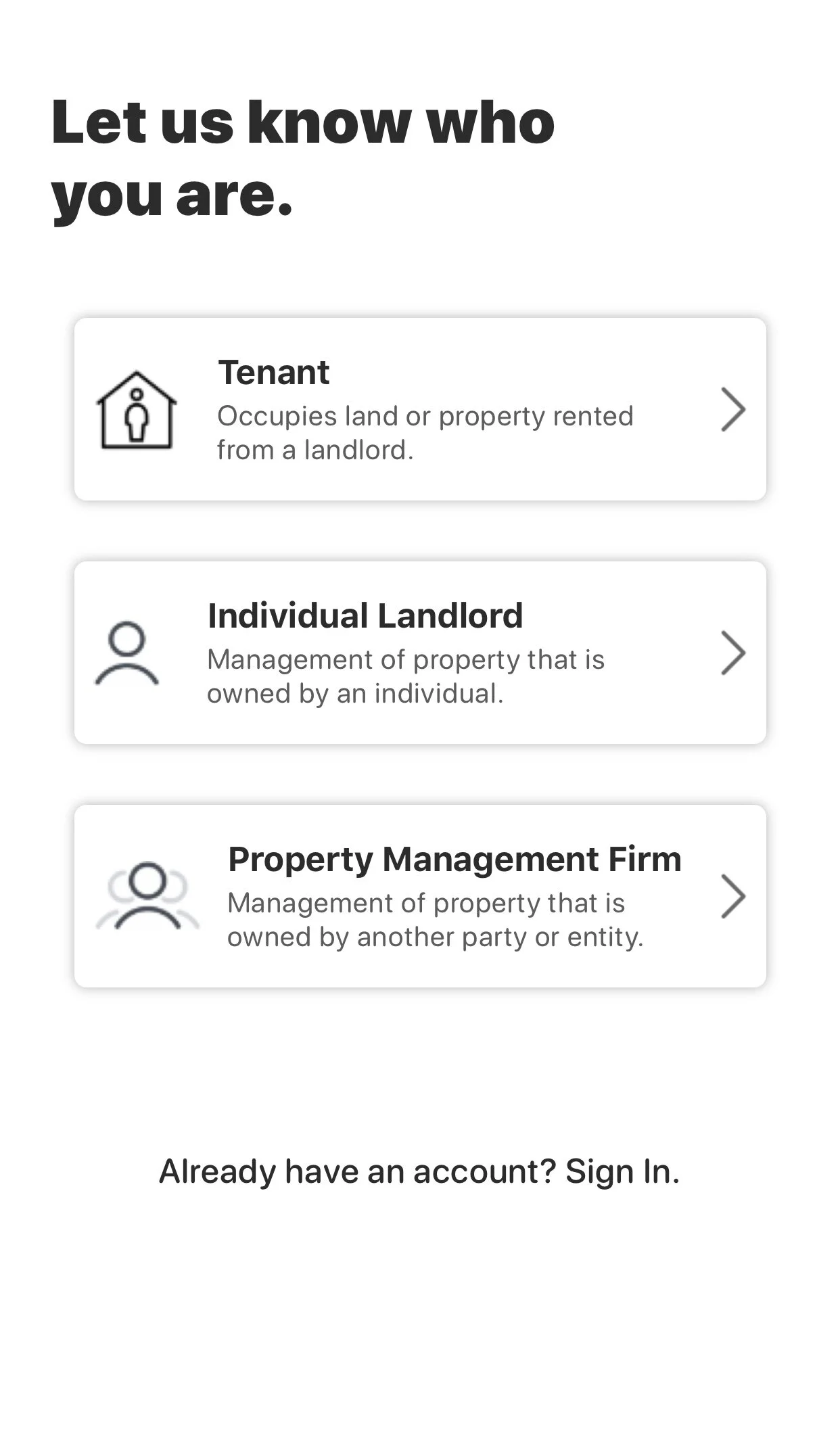
Step 1:
When signing-up for a Bolar account, you will be given three different titles to select from which include: tenant, individual landlord, or property management firm. When signing-up as a future tenant, click on the tenant option and begin the process of creating an account.
Step 2:
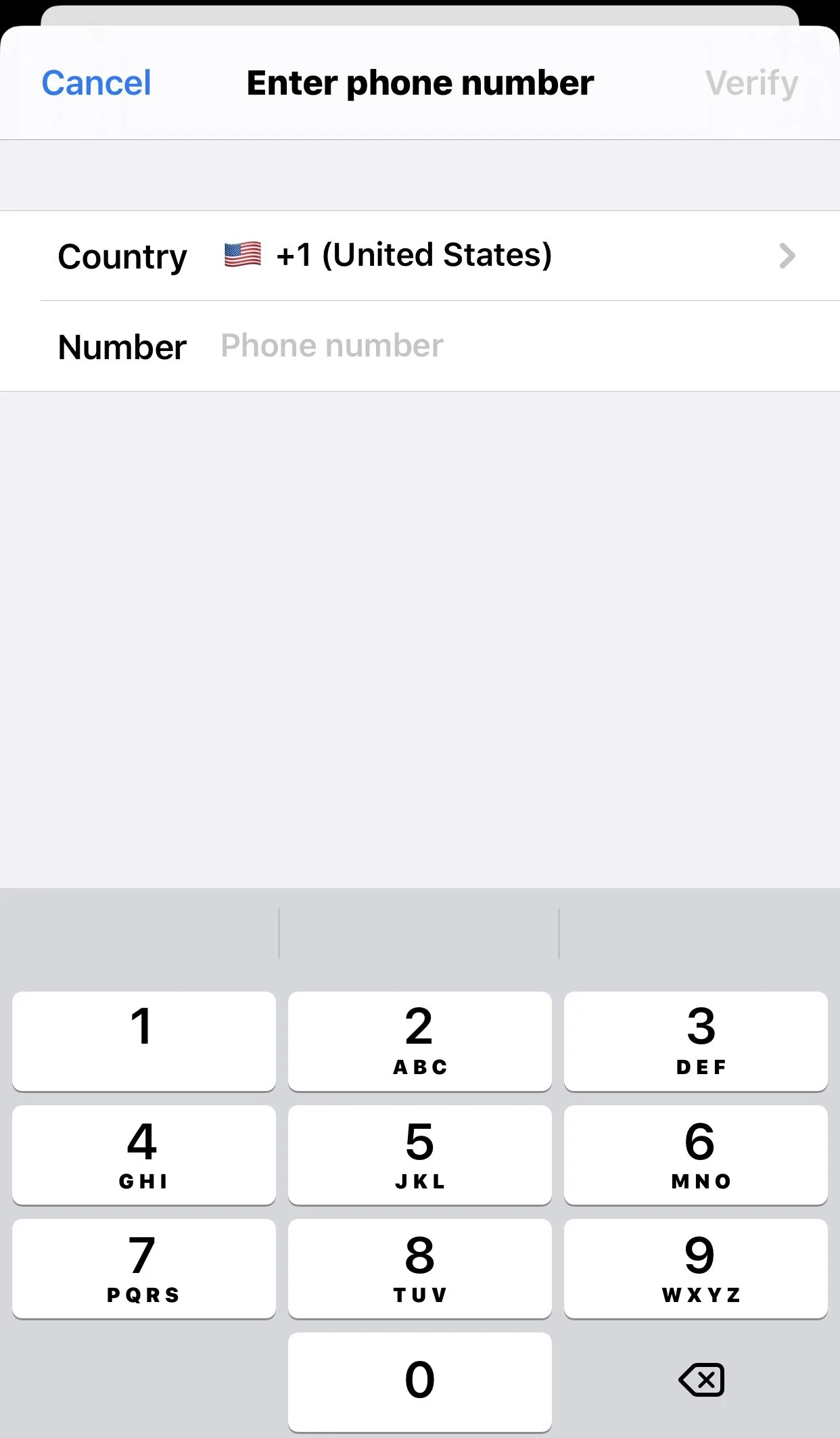
First off, you will be prompted to place in your phone number, and click on the verify button in the top right hand corner of the screen. At Bolar, we ensure the maximum level of security so this step ensures that your account can be accessed by you and only you.
Step 3:
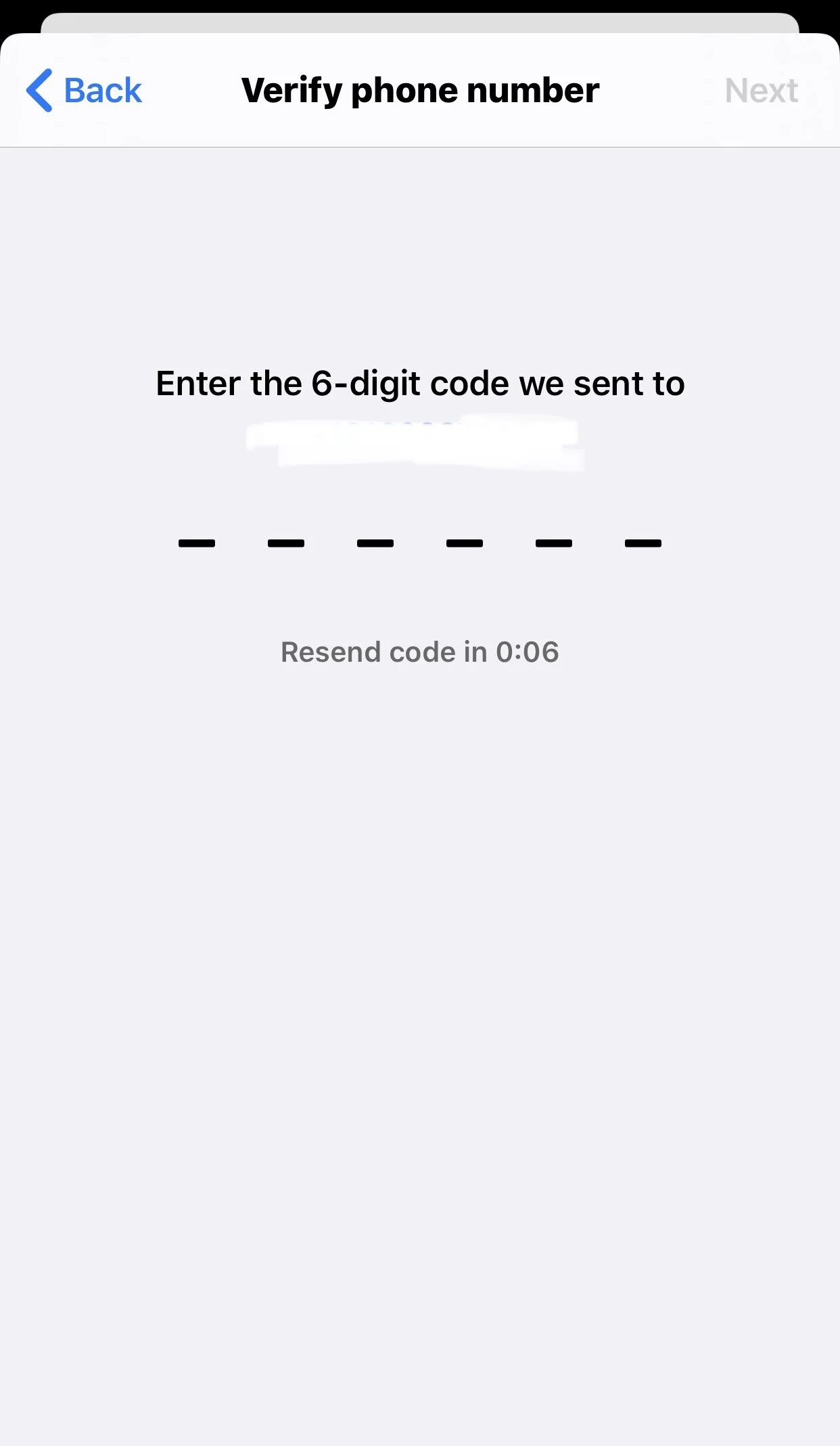
In 10-15 seconds, you will receive a text message from an automated phone number with a six-digit verification code which you will then input into the allotted space. After you have entered the code, you will click “next” in the upper-right hand corner of the screen, and continue onto the next step.
step 4:
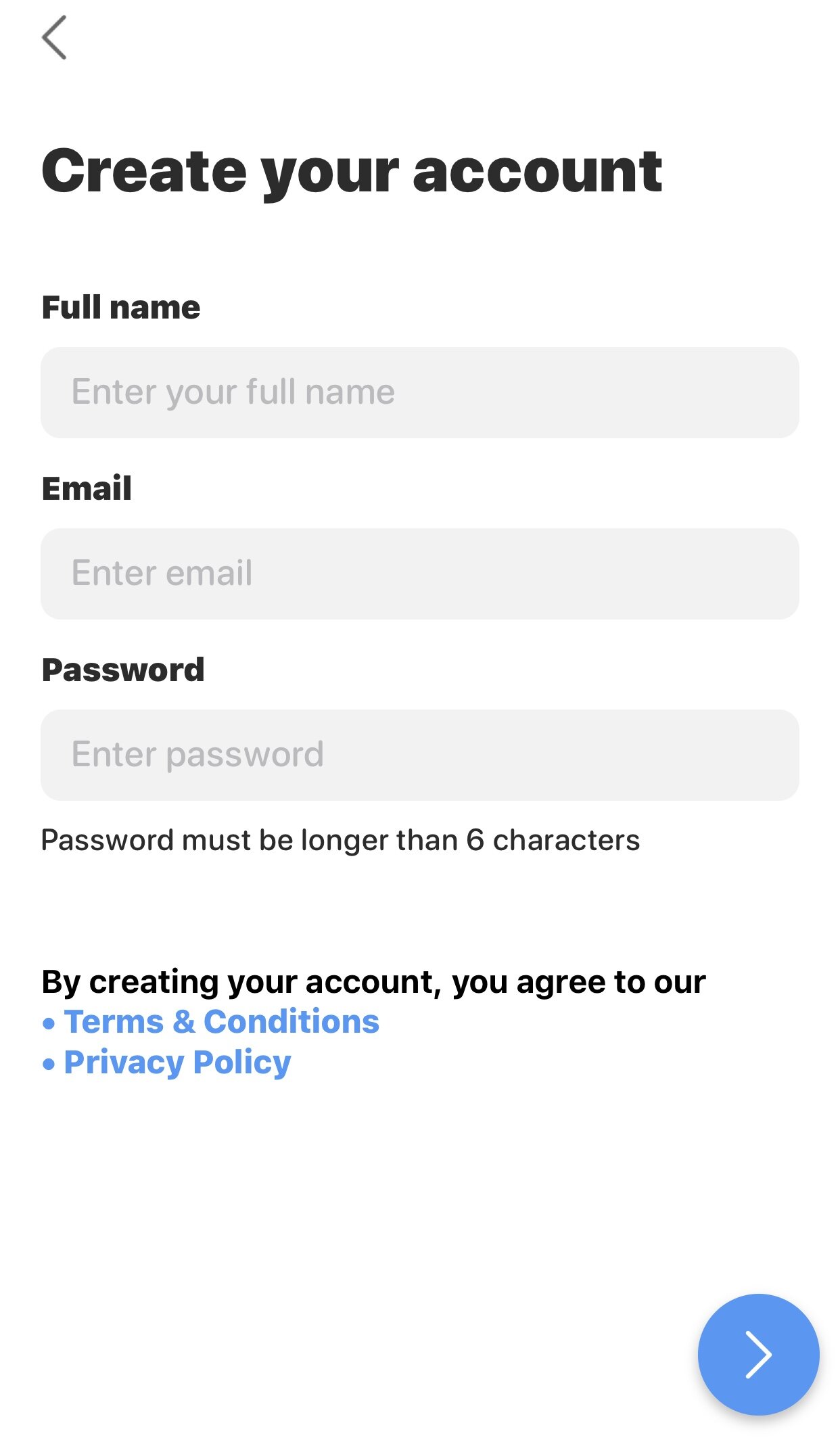
After your phone number has been verified, you will finally be taken to the “Create Your Account” screen which will prompt you to enter your legal full name, the email you wish to sign-up with, and a password to ensure your account remains secure. Also included on this page are our “Terms & Conditions” along with our “Privacy Policy”
Step 5:
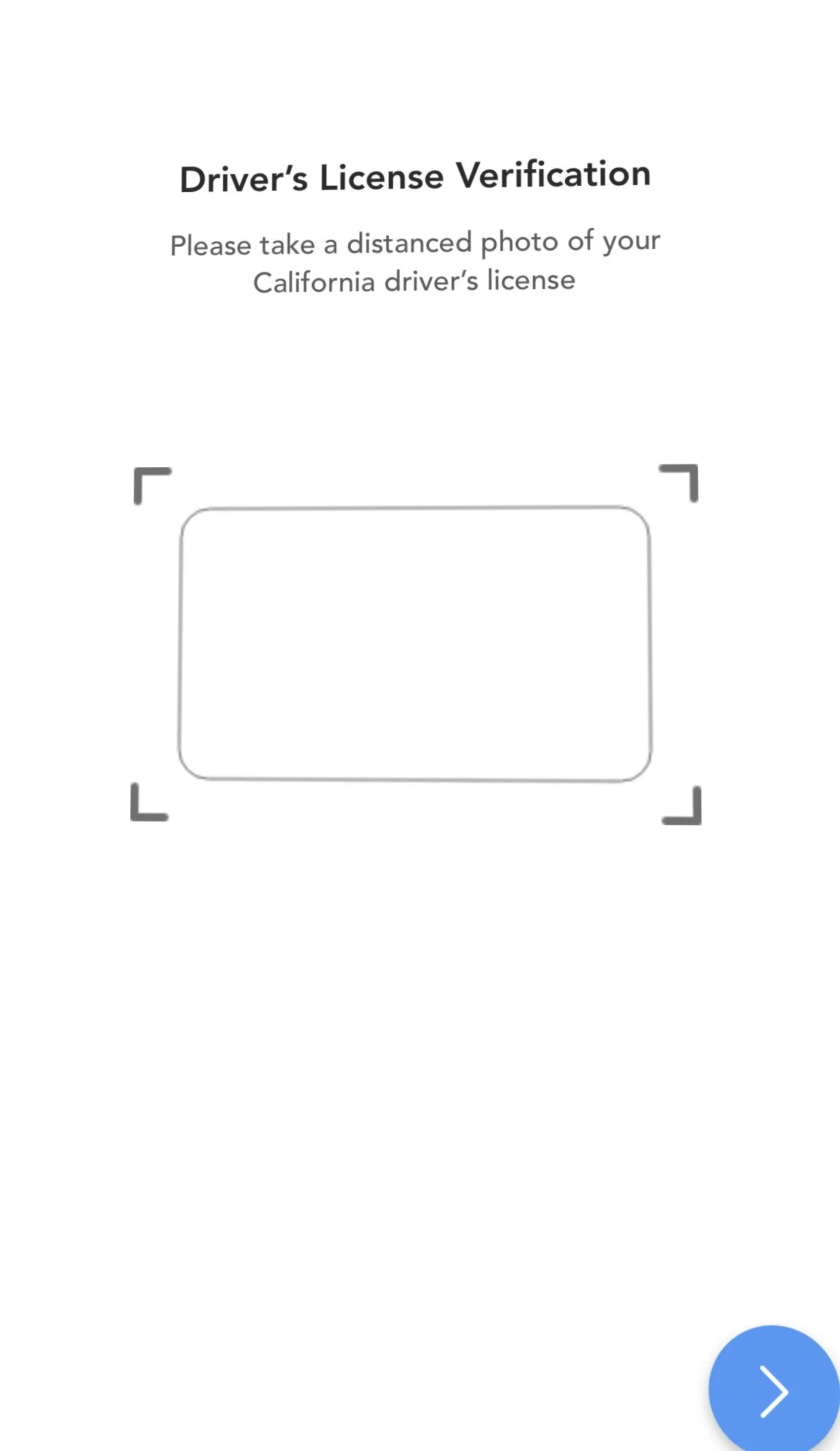
After inputting your information, you will be asked to use your camera to take a picture of the front and back of your license. This picture will be used to confirm your identity, and ensure no individual is attempting to wrongfully use your information.
step 6:
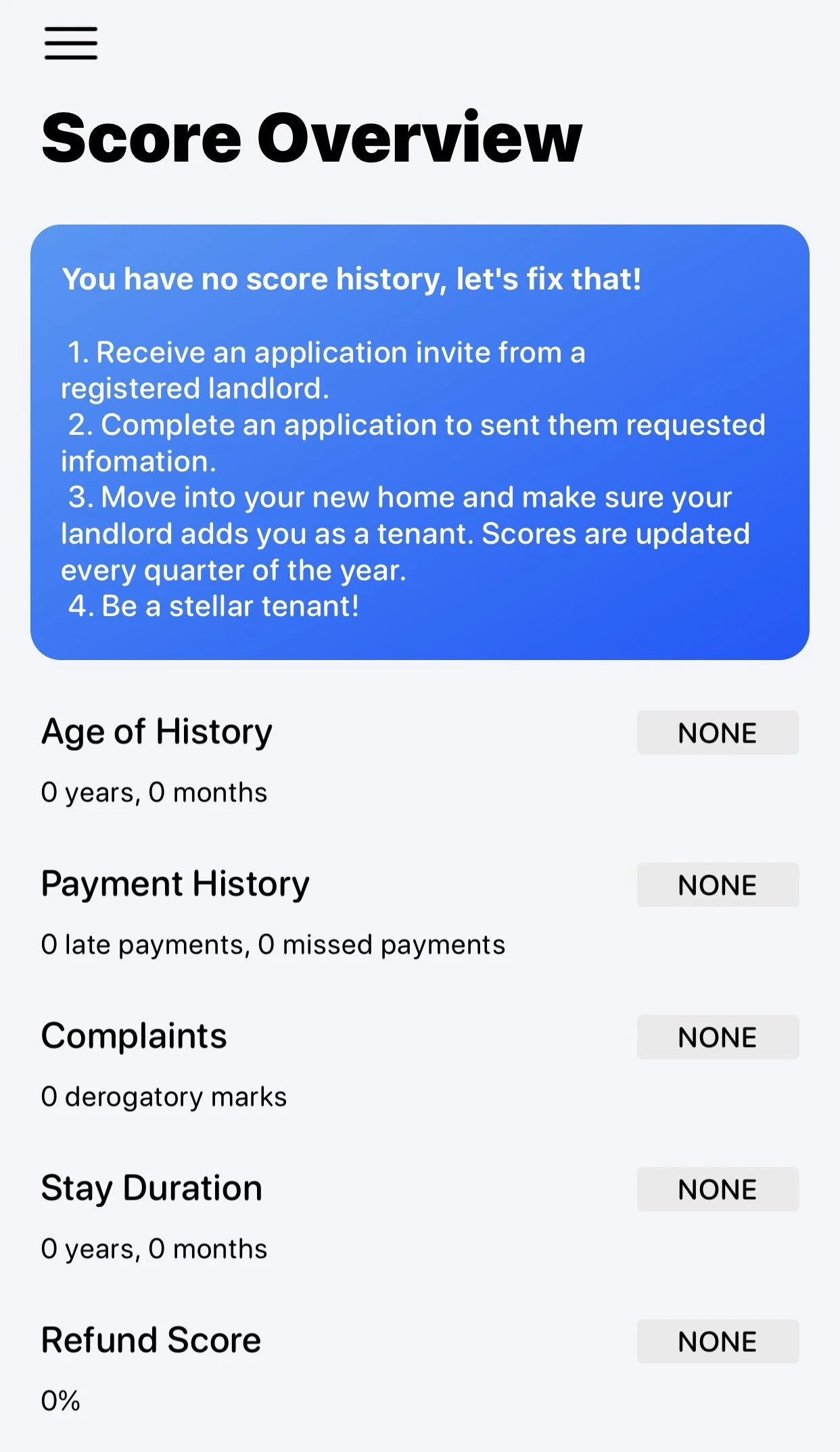
After taking a picture of your license, the sign-up process will be completed and you will be brought to the main home screen where you can view your score overview.
Step 7:
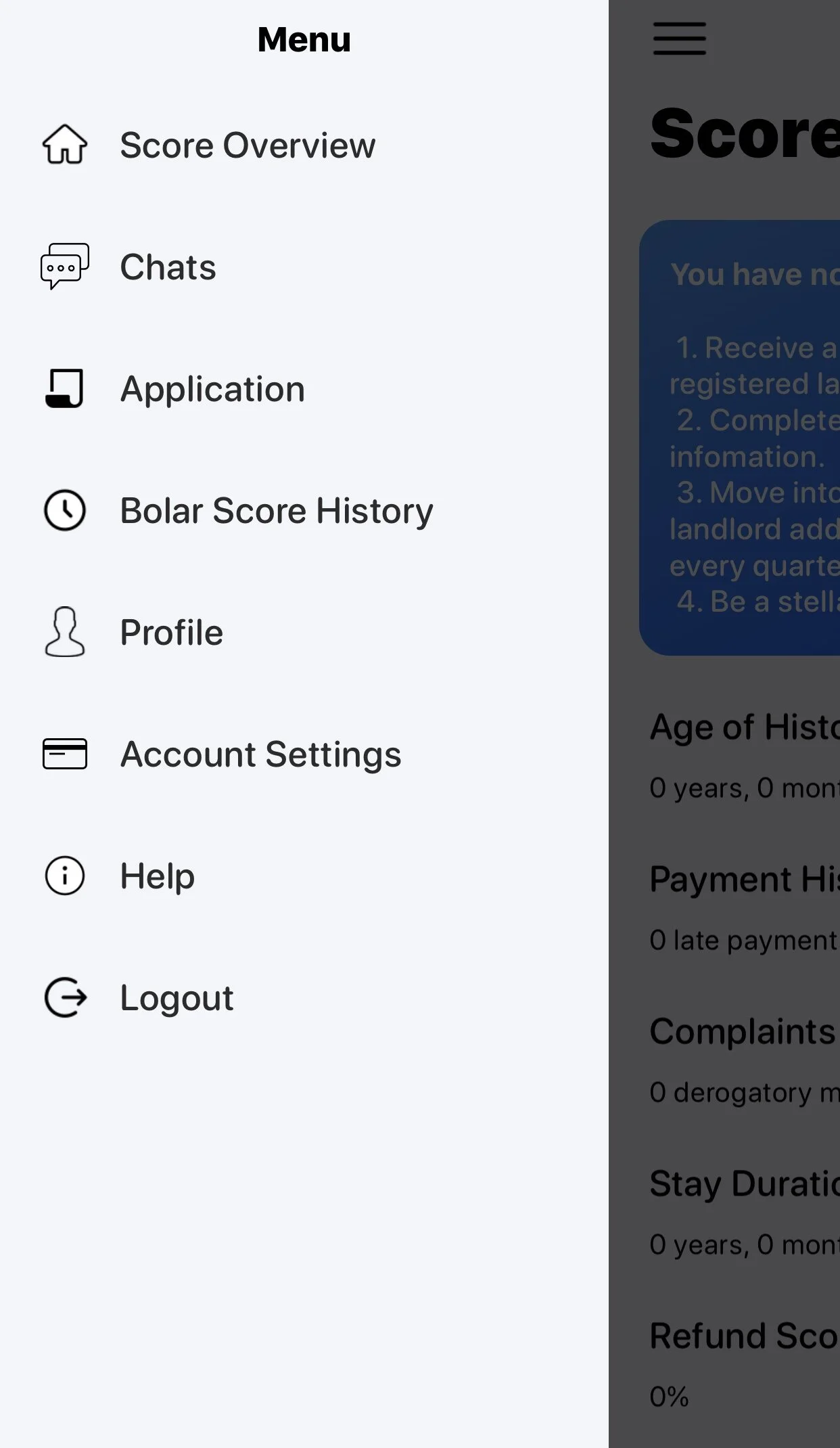
If you click the three-dashed lines in the top left-hand corner of the screen, you will be given a drop dead menu of various options within the app. Here, you can view chats with various landlords, applications you have submitted, your Bolar Score History, and change the email linked under your profile. Under the “Account Settings” option, you will be able to securely input your credit card information which will be stored for future uses when applying for homes. If you have any further questions, the “Help” tab will lead you to the website where your questions can be answered…Happy Hunting!